
Docker+Dockge, Ubuntu 24.04
This post is about installing Docker on Ubuntu 22.04 LTS. We also utilize the Dockge instead of Portainer. Dockge has some unique features and is well suited for use in a home lab. Portainer can do more, but Dockge is fine for now


Docker has 20B+ monthly image pulls, 20M+ monthly developers – it's truly the workhorse of IT today.
Prerequisite
Run as root sudo -s or use sudo as in the guide.
- If you need to add a user,
adduser <user_name>and fill in data or not. - Add the user to the
sudo group, if needed,usermod -aG sudo <user_name>
Update your package list
sudo apt update && sudo apt upgrade -yInstall Docker-ce
Installing Docker-ce, and it's dependable including docker-buildx-plugin, docker-ce-cli, docker-ce-rootless-extras and docker-compose-plugin.
Download GPG key and add to a specified directory:
sudo wget -qO /etc/apt/keyrings/docker.asc https://download.docker.com/linux/ubuntu/gpgAdd the Docker CE repository:
echo "deb [arch=amd64 signed-by=/etc/apt/keyrings/docker.asc] https://download.docker.com/linux/ubuntu $(lsb_release -sc) stable" | sudo tee /etc/apt/sources.list.d/docker.listInstall the Docker CE:
sudo apt update && sudo apt install docker-ce -yDocker should now be installed, the daemon started, and the process enabled to start on boot. Check that it’s running:
sudo systemctl status dockerThe output should be similar to the following, showing that the service is active and running:
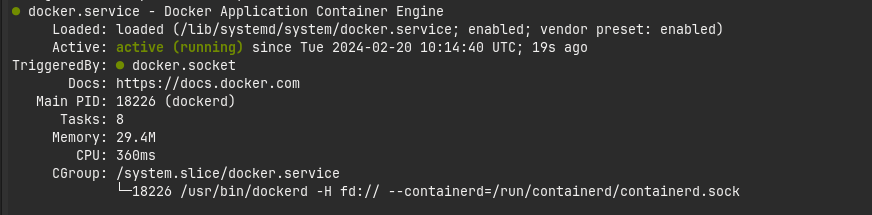
Installing Docker installs the Docker service daemon, but also: containerd.io, docker-buildx-plugin, docker-ce-cli, docker-ce-rootless-extras, docker-compose-plugin.
Elevate a normal user's privileges. Remember the security aspect of doing so.
sudo usermod -aG docker $USERActivate: exec su - l $USER or reboot the VM: systemctl reboot
Check if Docker is running sudo docker ps.
Install Dockge
Run as the normal user
Add the working directory mkdir -p /home/$USER/docker/. And go to it cd docker.
sudo docker run -d -p 5001:5001 --name Dockge --restart=unless-stopped -v /var/run/docker.sock:/var/run/docker.sock -v /home/$USER/docker/dockge/data:/app/data -v /home/$USER/docker/stacks:/home/$USER/docker/stacks -e DOCKGE_STACKS_DIR=/home/$USER/docker/stacks louislam/dockge:latestservices:
dockge:
ports:
- 5001:5001
container_name: Dockge
restart: unless-stopped
volumes:
- /var/run/docker.sock:/var/run/docker.sock
- /home/$USER/docker/dockge/data:/app/data
- /home/$USER/docker/stacks:/home/$USER/docker/stacks
environment:
- DOCKGE_STACKS_DIR=/home/$USER/docker/stacks
image: louislam/dockge:latest
networks: {}Check if it's running sudo docker ps.
Connect to the Dockge in your VM <IP>:5001

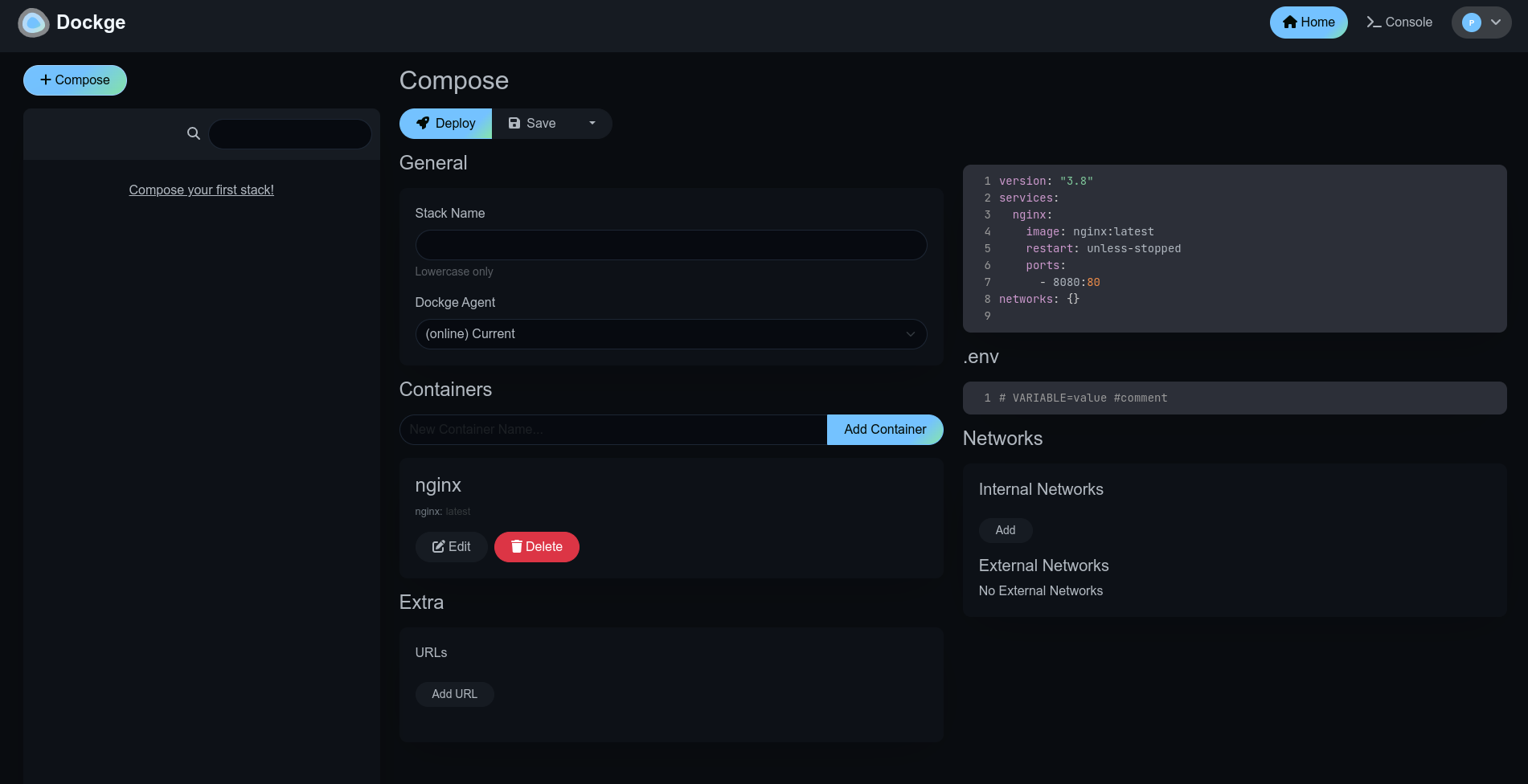
Now you can start to creating your stacks.
Using a script
Docker supplies a script for installing docker.
To install the latest stable versions of Docker CLI, Docker Engine, and their dependencies:
- Download the script
curl -fsSL https://get.docker.com -o install-docker.sh - Verify the script's content by reading it
cat install-docker.sh - Run the script with the
--dry-runflag set, to verify the steps it executes.
Run bysh install-docker.sh --dry-run - Run the script either as root, or using sudo to perform the installation.
sudo sh install-docker.sh
References
Docker homepage, Docker documentation, install by a script GitHub and the script ↩︎


