
Local SAMBA using a LXC
Attach a USB SSD or just a memory stick to a privileged LXC container on Proxmox, then install Samba in the container, and share the contents over the network. A network storage and more for SMB users. A fine place for ISOs and Cloud Images or family pictures or other media stuff.

Sometimes it's useful to add a hard drive or USB memory stick to a Proxmox host, especially on a mini PC with limited internal expansion. This post is about that.
Set up an Internal SAMBA Server
We will set up a basic SAMBA server for internal use on a privilege CT, for external use a VM is more secure.
Direct device pass-through, the mount point mp0 with a host path, needs a privileged LXC.
Use cases
- Generic NAS-style storage for the home network
- Holding documents that get auto-scanned by Paperless and other apps
- A place for my work related document backups
- Backing a media server e.g., Jellyfin
- Hold our pictures on the network
- Storage for my scripts related to this lab
Prepare the node for a CT to run SAMBA
Add a USB disk to the Proxmox node
Identify the device
Compare the disk list before and after plugging in the USB drive — the new device is your target. Use the Shell and the command lsblk.
Use a stable identifier — Very Important
If you use something like /dev/sdd1 it can change between boots if you have multiple USB disks. Find the persistent identifier and use it for stability.
Find your disk on the node
ls -l /dev/disk/by-id/ | grep -v partlrwxrwxrwx 1 root root 9 Jun 21 22:05 ata-KINGSTON_SV300S37A240G_50026B7671006C04 -> ../../sda
lrwxrwxrwx 1 root root 9 Jun 21 22:05 usb-Generic-_SD_MMC_MS_PRO_20120926571200000-0:0 -> ../../sdc
lrwxrwxrwx 1 root root 9 Jun 23 14:29 usb-JMicron_PCIe_DD0000000000001D-0:0 -> ../../sdd
lrwxrwxrwx 1 root root 9 Jun 21 22:05 usb-PNY_USB_3.2.1_FD_07211B9A0005BB93-0:0 -> ../../sdb
lrwxrwxrwx 1 root root 9 Jun 21 22:05 wwn-0x50026b7671006c04 -> ../../sdaSample output
Use the /dev/disk/by-id/usb-JMicron_PCIe_... path in the LXC config below instead of /dev/sdd1. It survives reboots and re-plugging.
Format the disk
A sensible default for Linux-backed shares is ext4, case-sensitive, supports POSIX ACLs, no file-size limits. If your disk is used you should re-partition it with fdisk/sfdisk fdisk /dev/sdd, before formatting it.
Create the file system
mkfs.ext4 /dev/sdd1Format the disk by running this on your node
Replace/dev/sdd1with the actual partition device — or with the persistent/dev/disk/by-id/usb-JMmicron_PCIe_...-part1path.
Create a CT to host the SAMBA Server
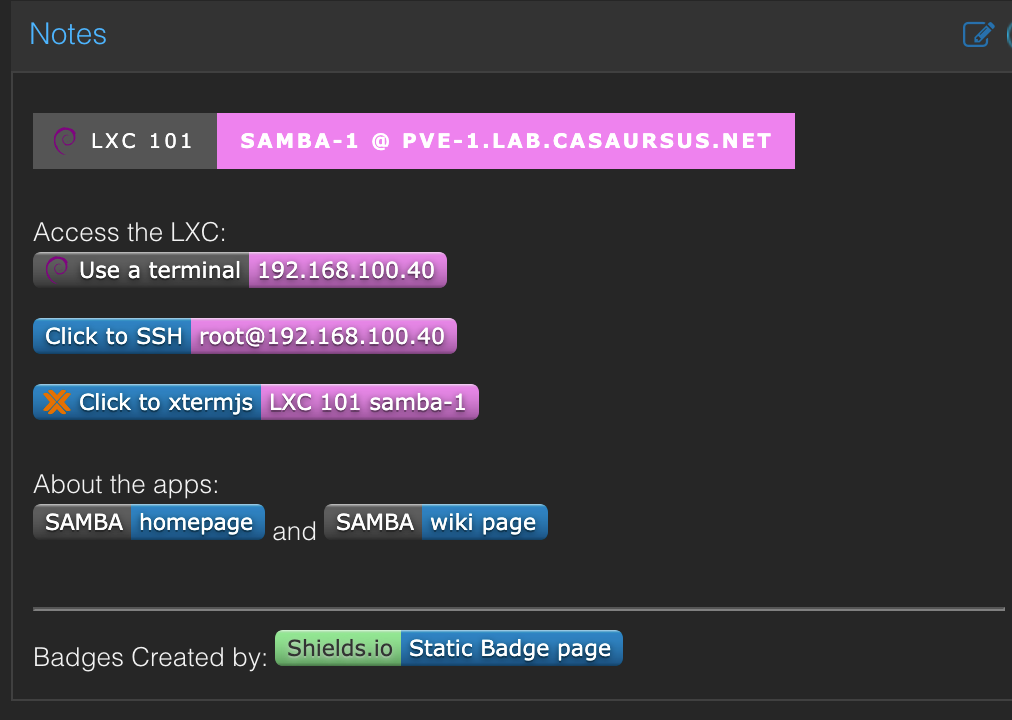
I used a Debian Trixie based CT.
- CPU 1 core
- Disk (system) is small 1-2 GIB
- Disk (USB) is bigger, Used an old laptop M.2 SSD in a USB case, 500 G
- The share can be named whatever, here
SAMBA_USB - RAM 512 for a small Lab but with more users you need more RAM
- In this post the container number is
101, your number is probably different. - The Server name is
samba-1 - We shall add a user, here we use
admin
Set up the CT for SAMBA
Create the Mount Point
Inside the LXC, create the directory where the disk will appear (any name works):
mkdir /mnt/SAMBA_USBSAMBA_USB or CT101_USB are fine names
Add the Disk to the LXC
Attach the USB disk to the CT
On the node, edit the container's config. Replace 101 with your container ID:
nano /etc/pve/lxc/101.confAdd this line, but change VENDOR_MODEL_SERIAL to your disks ID
mp0: /dev/disk/by-id/usb-VENDOR_MODEL_SERIAL-part1,mp=/mnt/SAMBA_USB,backup=0mp0: /dev/sdd1,mp=/mnt/SAMBA_USB,backup=0.The backup=0 flag excludes this mount point from vzdump backups — usually the right call for large external drives that are the host's target storage rather than its data. If your PBS have the space change to backup=1, even if you back up frequently the no-dup feature keeps the backups small and fast.
Restart the LXC
On the node restart the LXC (e.g., 101) to apply the mount point:
pct reboot 101If the pct reboot fails with device not found means that the device path for the mount point mp0 doesn't exist on the host.
- Check with
ls -l /dev/disk/by-id/and update the path accordingly.
Install Samba on the new CT
Now we finally move to work on the CT. Install the package inside the LXC and continue with the rest of the installation.
Install the SAMBA Server Package
apt-get update
apt-get install -y samba
Confirm that the service is running:
systemctl status smbd.serviceCreate a user for the share
Pick a username, here we use admin, change to your own.
Create it as a system user
adduser adminSet the Samba passwords
Yes they are separate from the Linux system passwords.
smbpasswd -a adminSet Basic Permissions to the Disk
Set the directory permissions for the user who will own the share e.g., admin.
The setup below is enough for the most basic of setups
Create the directory
mkdir -p /mnt/SAMBA_USBSet the owner
chown -R admin:admin /mnt/SAMBA_USBSet the Linux privileges
chmod 770 /mnt/SAMBA_USBadmin with the username you'll create below. 770 gives full access to the user and group, no access to others.Safer than the wide-open
chmod -R 777 that is often used, while still letting the share work.
Better Control for Multi-User Setups
When you need to add a second user or more to the share
- Create the user with
adduser, - Register the user with
smbpasswd -a, - Edit the share's
valid users =:- add the user to the comma-separated list
valid users = admin, nalle - or use the
valid users = @samba_users.setting to include all samba users.
- add the user to the comma-separated list
With multiple users sharing the same path with different rights, use ACLs
apt install -y aclSet ownership
For finer-grained control (multiple users sharing the same path with different rights), use ACLs:
setfacl -R -m "u:admin:rwx" /mnt/SAMBA_USBFor new files we set the default ACL
setfacl -d -R -m "u:admin:rwx" /mnt/SAMBA_USB Configure the Samba share
The file smb.conf is where you define how a SAMBA Server works. Below is the things we need to add/change for our network storage to work. You might have more needs, depending on the use case.
smb.conf file you should run the command testparm to check that you have not made any basic syntactic errors. Make a backup
cp /etc/samba/smb.conf /etc/samba/smb.conf.bakEdit the SAMBA Configuration
If you know how, you can remove all unnecessary stuff from the file or why not start from a blank file and add the things you require. The smb.conf file is full of comments and plenty of stuff you don't need for a storage server.
nano /etc/samba/smb.confChange home directories to Read/Write
# By default, the home directories are exported read-only. Change the
# next parameter to 'no' if you want to be able to write to them.
   read only = no
Add the definition of our new share to the end
[SAMBA_usb]
    comment = Shared USB storage on CT 101
    path = /mnt/SAMBA_USB
    read only = no
    writable = yes
    browseable = yes
    guest ok = no
    valid users = admin
    create mask = 0660
directory mask = 0770valid users = admin line restricts access to that single Samba user. For multi-user setup use valid users = admin, nallevalid users = @samba_users after adding the user(s) to a group named samba_users or whatever the group is called.Test the syntax
You will be informed if there is an issue with the configuration.
You will have a net configuration printed to the screen.
testparmRestart Samba
systemctl restart smbdVerify you can access the Share
For LAN clients to use our SMB-share on the CT e.g., 101we need to authenticate with the Samba user e.g., nalle and the password you set with smbpasswd.
The server should appear in the network browser samba-1 or you can connect to the share in your network browser with smb://<IP or FQDN>/<username> e.g., smb://192.0.2.40/nalle.
- macOS and Linux
- Open your file manager and point it to the
samba-1orsmb://192.0.2.40thenOpen asand fill in the User and Password
- Open your file manager and point it to the
- Windows
- Open the file manager and point to
samba-1or\\192.0.2.40and then open using the User and Password
- Open the file manager and point to
Choose it you want the machine to remember your login credentials or not.
You can use the share both inside the container and across the network:
Troubleshooting
- If the CT starts but
/mnt/SAMBA_USBis empty.- Probably the disk isn't mounted inside the CT
Look forSAMBA_USBon the CT:lsblkor on the node:pct df 101
If it's missing, the mount point is wrongly defined in the configuration, and you need to correct the configuration
- Probably the disk isn't mounted inside the CT
- Samba authenticates but writes fails with a
Permission deniederror message- Linux directory permissions don't allow the Samba user to write.
Check thechown/setfaclcommands issued, then correct any errors
- Linux directory permissions don't allow the Samba user to write.
- If the share is not appearing in the network browser, but
smb://192.0.2.40:/nalleworks. This is totally fine. But, you can change this if you like/need.- Browseability over the LAN depends on NetBIOS/WS-Discovery.
To activate it, addnmbdbyapt-get install -y samba-common-binthen ensure thatnmbdis enabled withsystemctl status nmbdif not issuesystemctl enable nmbd --now
- Browseability over the LAN depends on NetBIOS/WS-Discovery.
References
SAMBA [1] Badges [2] About IPs [3]
SAMBA introduced in 1992. Samba is the Open Source implementation of the SMB and Active Directory protocols for Linux and UNIX-like systems.It provides secure, stable and fast file and print services for all clients using SMB and other AD protocols such as LDAP and Kerberos.
Samba is a high-performance, scalable distributed software for providing access to various cluster filesystems. It enables cloud platform-as-a-service (PaaS) providers, software-defined storage (SDS) solutions, high-performance computing (HPC) applications, and enterprise-grade network attached storage (NAS) to support the latest security and SMB capabilities.
Samba is an important component to seamlessly integrate Linux/Unix Servers and Desktops into Active Directory environments. It can function either as an Active Directory Domain Controller or as a member server.
homepage, getting started Wiki ↩︎IPv4 Address Blocks for Documentation are by RFC 5737:
TEST-NET-1 = 192.0.2.0/24, -2 = 198.51.100.0/24, -3 = 203.0.113.0/24 ↩︎


