
Arcane – Docker Dashboard
My new favorite. A Modern Docker Management GUI with a clean, intuitive design. The GUI includes: real-time monitoring, container management, image management, network configuration, volume management and resource visualization and the list goes on ...

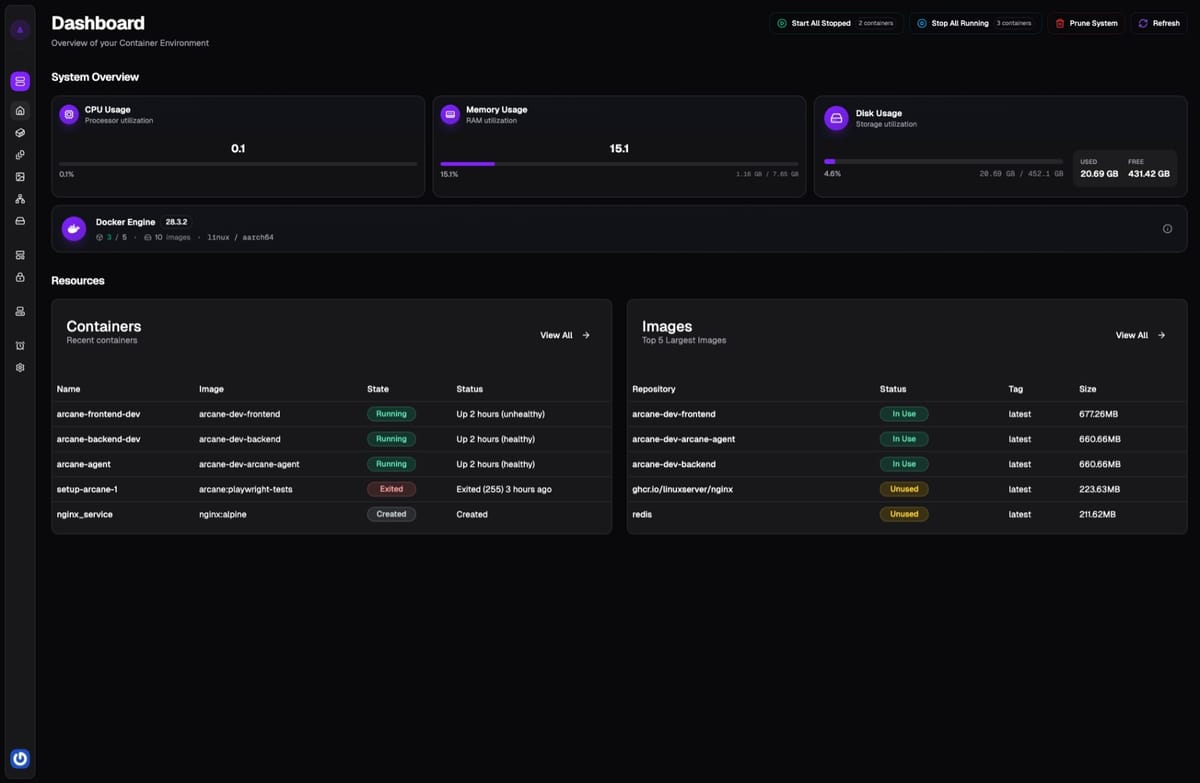
Features
- Real-time Monitoring – Live updates of container status, resource usage, and logs.
- Container Management – Start, stop, restart, and inspect containers with ease.
- Image Management – Pull, and manage Docker images.
- Environment Configuration – A (.env) editor to define environment variables
- Network Configuration – Create and configure Docker networks.
- Volume Management – Create and manage persistent data with Docker volumes.
- Resource Visualization – Visual graphs for CPU, memory, and network usage.
- Remote Environments – Manage containers on other hosts through an Agent.
- Notifications – Discord and email notifications for container image updates.
- OIDC Single Sign-On – secure single sign-on access to Arcane.
- Socket Proxy – Secure your Docker socket by using a proxy layer with Arcane.
Setup Arcane
You need to have Docker running before you can start.
First, we need to generate a Key and a Secret.
Use the command below to pull the Arcane image and generate the Key and the Secret:
docker run --rm ghcr.io/getarcaneapp/arcane:latest /app/arcane generate secretBASE64
------
ENCRYPTION_KEY=Am8XKyNcSSl9oh+JoNI3cOr3mxoth+Y87u9inUzy0ZM=
JWT_SECRET=vhBN3VY91/ibZFGQ4G2m56R4faW4Z38dKK5oukZ8kxQ=Or using the opnssl rand command
- Create the ENCRYPTION_KEY : run
openssl rand -base64 32 - Create the JWT_SECRET: run
openssl rand -hex 32
Create the .env file and store the Key and The Secret there.
Create the Arcane service and start it by docker compose up -d.
Upgrading from Dockge
By setting up Arcane in Dockge you will see all the containers and have access.
If you just set up Arcane on its own, you can use the same volumes to get them all.
This is a great improvement over Portainer and Dockge.
The compose file
You need to change the Volumes to fit your environment.
services:
  arcane:
    image: ghcr.io/getarcaneapp/arcane:latest
    container_name: arcane
    ports:
      - '3552:3552'
    volumes:
      - /var/run/docker.sock:/var/run/docker.sock
      - ./arcane-data:/app/data
      - ./stacks:/app/data/projects
    environment:
      - TZ=$TZ
      - APP_URL=$APP_URL
      - PUID=$PUID
      - PGID=$PGID
      - ENCRYPTION_KEY=$ENCRYPTION_KEY
      - JWT_SECRET=$JWT_SECRET
    restart: unless-stopped

volumes:
  arcane-data:
If the port 3552 is already in use, change to ####:3552
The .env file
You need to set all the values in the .env file to reflect your environment.
# the .env file for arcane
TZ=Europe/Dublin                 # use your local or GMT
APP_URL=http://192.0.2.200:3552  # Replase with your IP
PUID=1000                        # use your user ID
PGID=1000                        # use your user GID
ENCRYPTION_KEY='Am8XKyNcSSl9oh+JoNI3cOr3mxoth+Y87u9inUzy0ZM='
JWT_SECRET='vhBN3VY91/ibZFGQ4G2m56R4faW4Z38dKK5oukZ8kxQ='
Using the Socket Proxy
First, we need a Key and a Secret, then configure your agent's compose.yml.
The compose.yml file
services:
  # Docker Socket Proxy - see https://github.com/Tecnativa/docker-socket-proxy
  docker-socket-proxy:
    image: tecnativa/docker-socket-proxy:latest
    container_name: arcane-docker-proxy
    environment:
    ### Required for Arcane
      - EVENTS=1             # Container event monitoring
      - CONTAINERS=1         # Container management
      - EXEC=1               # Execute commands in containers
      - IMAGES=1             # Image management
      - NETWORKS=1           # Network management
      - VOLUMES=1            # Volume management
      - POST=1               # Required for create/update operations
    ### System Information
      - PING=1               # Health checks
      - VERSION=1            # Docker version info
      - INFO=1               # Docker system info
    ### Security critical
      - AUTH=0               # Authentication APIs
      - SECRETS=0            # Docker secrets access
    ### Optional (Disabled)
      - BUILD=0              # Image building
      - COMMIT=0             # Container commits
      - CONFIGS=0            # Docker configs
      - DISTRIBUTION=0       # Distribution APIs
      - NODES=0              # Node management
      - PLUGINS=0            # Plugin management
      - SERVICES=0           # Service management (Swarm)
      - SESSION=0            # Session management
      - SWARM=0              # Docker Swarm features
      - SYSTEM=0             # System-wide operations
      - TASKS=0              # Task management (Swarm)

    volumes:
      - /var/run/docker.sock:/var/run/docker.sock:ro
    networks:
      - arcane-internal
    restart: unless-stopped
    security_opt:
      - no-new-privileges:true

  arcane:
    image: ghcr.io/getarcaneapp/arcane:latest
    container_name: arcane
    ports:
      - '3552:3552'
    volumes:
      - arcane-data:/app/data
    environment:
      - TZ=$TZ
      - APP_URL=$APP_URL
      - PUID=$PUID
      - PGID=$PGID
      - ENCRYPTION_KEY=$ENCRYPTION_KEY
      - JWT_SECRET=$JWT_SECRET
      - DOCKER_HOST=$DOCKER_HOST
    networks:
      - arcane-internal
    depends_on:
      - docker-socket-proxy
    healthcheck:
      test: ['CMD-SHELL', 'curl -fsS http://localhost:3552/api/health >/dev/null || exit 1']
      interval: 10s
      timeout: 3s
      retries: 5
      start_period: 15s
    restart: unless-stopped

networks:
  arcane-internal:
    driver: bridge
    name: arcane-internal

volumes:
  arcane-data:
    name: arcane-data
The .env file
You need to set all the values in the .env file to reflect your environment.
# the .env file for arcane
TZ=Europe/Dublin                     # use your local or GMT
APP_URL=http://192.0.2.200:3552      # Replase with your IP
PUID=1000                            # use your user ID
PGID=1000                            # use your user GID
ENCRYPTION_KEY='Am8XKyNcSSl9oh+JoNI3cOr3mxoth+Y87u9inUzy0ZM='
JWT_SECRET='vhBN3VY91/ibZFGQ4G2m56R4faW4Z38dKK5oukZ8kxQ='
DOCKER_HOST=tcp://docker-socket-proxy:2375 # proxy integration
Agent
First, we need a Key and a Secret, then configure your agent's compose.yml.
The compose.yml file
services:
  arcane-agent:
    image: ghcr.io/getarcaneapp/arcane-headless:latest
    container_name: arcane-agent
    ports:
      - 3553:3553
    environment:
      - AGENT_BOOTSTRAP_TOKEN=$AGENT_BOOTSTRAP_TOKEN
    volumes:
      - /var/run/docker.sock:/var/run/docker.sock
      - agent-data:/app/data
    restart: unless-stopped
volumes:
  agent-data: {}
The .env file
# .env for the arcane agent
AGENT_BOOTSTRAP_TOKEN='QLxaGsztDv5V0zuEO8HcoPlzTX7fWDrGUkFq2/JucOQ='
Now add the Remote Environment.
In the GUI, left pain Environments→ top Add Environment
Access Arcane
In your browser, go to <your-docker-vm-IP>:3552 and do the initial setup.
You will be asked to change the default admin password.
The default credentials : Username: arcane and Password: arcane-admin
LXC Host Config
Before configuring Arcane, ensure your LXC container has the necessary permissions. On your Proxmox host or LXC manager, you may need to enable nesting and adjust features.
See the documentation for full understanding.
# Enable nesting for Docker support
lxc.include = /usr/share/lxc/config/nesting.conf

# For unprivileged containers, you may need:
features: nesting=1References
Arcane homepage, Documentation compose generator, GitHub ↩︎


