
More New Themes for Proxmox
You can make a new theme for Proxmox, and many have done so. The oldest came to PVE 6. The most feamose was "PVE Discord Dark", now we have some newer themes: Nord PVE, Solar PVE and new forks of PVE Discord Dark.

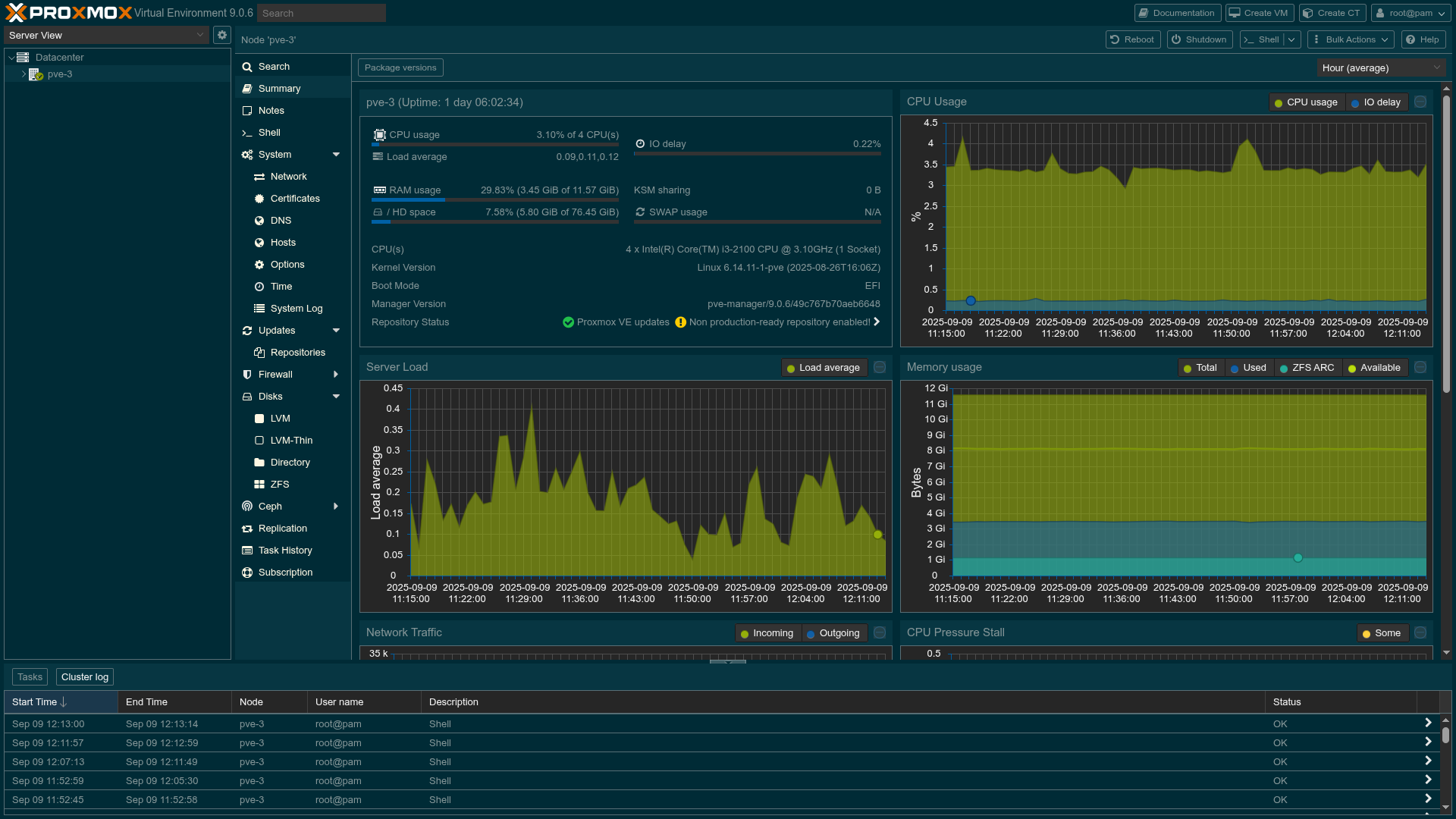
The supported themes are the two included in the Proxmox system to chose from, Light and Dark. All others are on your own risk. Never use them on a production system, but if you have the skills and time, run them in your lab just for fun.
How do they work
Type 1 – Solar PVE and Nord PVE
Pretty easy to understand and fix for beginners
They basically use a new CSS and edit the existing logic by adding a snippet.
First, you need the new CSS -file in the /usr/share/pve-manager/images/ directory, and then you need to edit the settings of the PVE-Manager, the index.html.tpl -template file /usr/share/pve-manager/index.html.tpl
Type 2 – Discord Dark forks
For more advanced users
They have an installation script that will do things to the Proxmox system and download stuff. Please read the code before running any of them. They are using bash or python language based apps.
Nord PVE – Nordic Polar Day/Night
- Light (Nordic Polar Day) by default
- Dark (Nordic Polar Night) when Proxmox’s dark stylesheet is present
- No JS-framework dependencies—just vanilla CSS & a tiny inline script
- Easy to install and override via Proxmox’s
index.html.tpl
Installation
Copy the CSS
Place nord.css into your Proxmox server’s static‐assets folder.
cd /usr/share/pve-manager/css/ && wget https://github.com/vhsdream/NordPVE/raw/refs/heads/main/nord.cssUsually at /usr/share/pve-manager/images/
Patch the Proxmox template
This part is the main logic behind changing themes.
And as it's a system file, it can be overwritten by an update of Proxmox.
- Backup the original template file as
index.html.tpl.orig
cp /usr/share/pve-manager/index.html.tpl /usr/share/pve-manager/index.html.tpl.origBackup, the index.html.tpl usually found at /usr/share/pve-manager/
- Edit Proxmox’s
index.html.tplby adding the snippet
nano /usr/share/pve-manager/index.html.tpl</body>(close to the bottom of the page).
    <script>
      function setNordThemeMode() {
        const defaultMode = window.matchMedia(
          "(prefers-color-scheme: dark)",
        ).matches;

        const selectedTheme = document.cookie
          .split("; ")
          .find((row) => row.startsWith("PVEThemeCookie="))
          ?.split("=")[1];

        if (defaultMode && selectedTheme !== "crisp") {
          document.body.classList.add("proxmox-theme-dark");
        } else if (selectedTheme !== "proxmox-dark") {
          document.body.classList.remove("proxmox-theme-dark");
        } else {
          document.body.classList.add("proxmox-theme-dark");
        }
      }
      window
        .matchMedia("(prefers-color-scheme: dark)")
        .addEventListener("change", setNordThemeMode);
      setNordThemeMode();
    </script>

    <link rel="stylesheet" href="/pve2/css/nord.css" />
Clear browser cache
After restarting the PVE manager service, do a hard-refresh (Ctrl+F5) so your new CSS and script take effect. You should now see some color changes.
Restart Proxmox GUI
systemctl restart pveproxySwitch between Nord and Solar
If you want to switch between Solar and Nord the easiest way is to switch between index.html.tpl.nord and index.html.tpl.solar by copying them as index.html.tpl
cp /usr/share/pve-manager/index.html.tpl /usr/share/pve-manager/index.html.tpl.nordHow Nord PVE Works
- Dark mode When Proxmox itself loads
theme-proxmox-dark.css, it's loading the small snippet we added containing<script>of theproxmox-theme-darkto<body>and you can write complementary CSS rules (e.g. underbody.proxmox-theme-dark) for Nordic Polar Night.
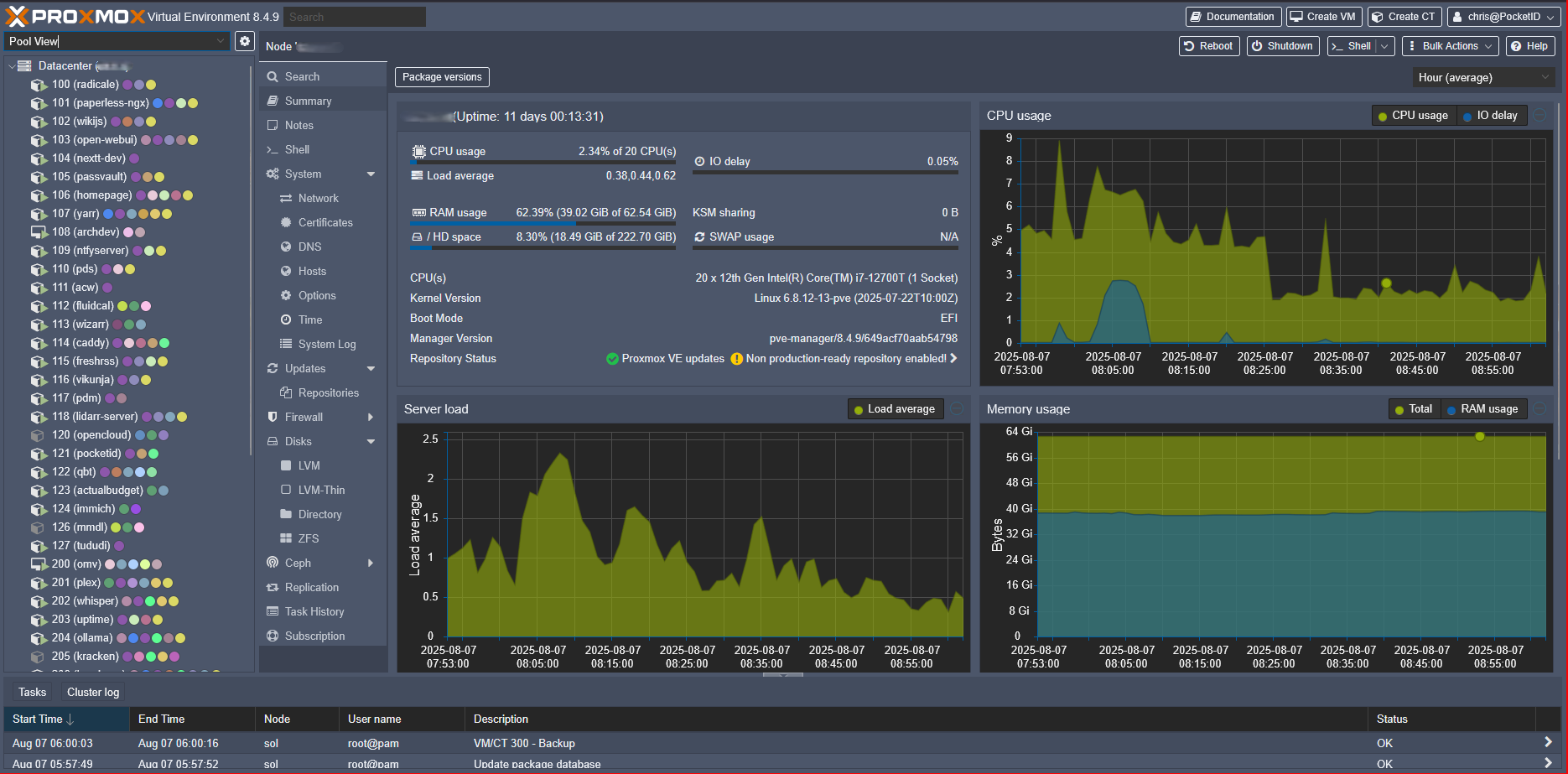
- Light mode All rules in the CSS scoped under
body:not(.proxmox-theme-dark)apply Nordic Polar Day defaults.
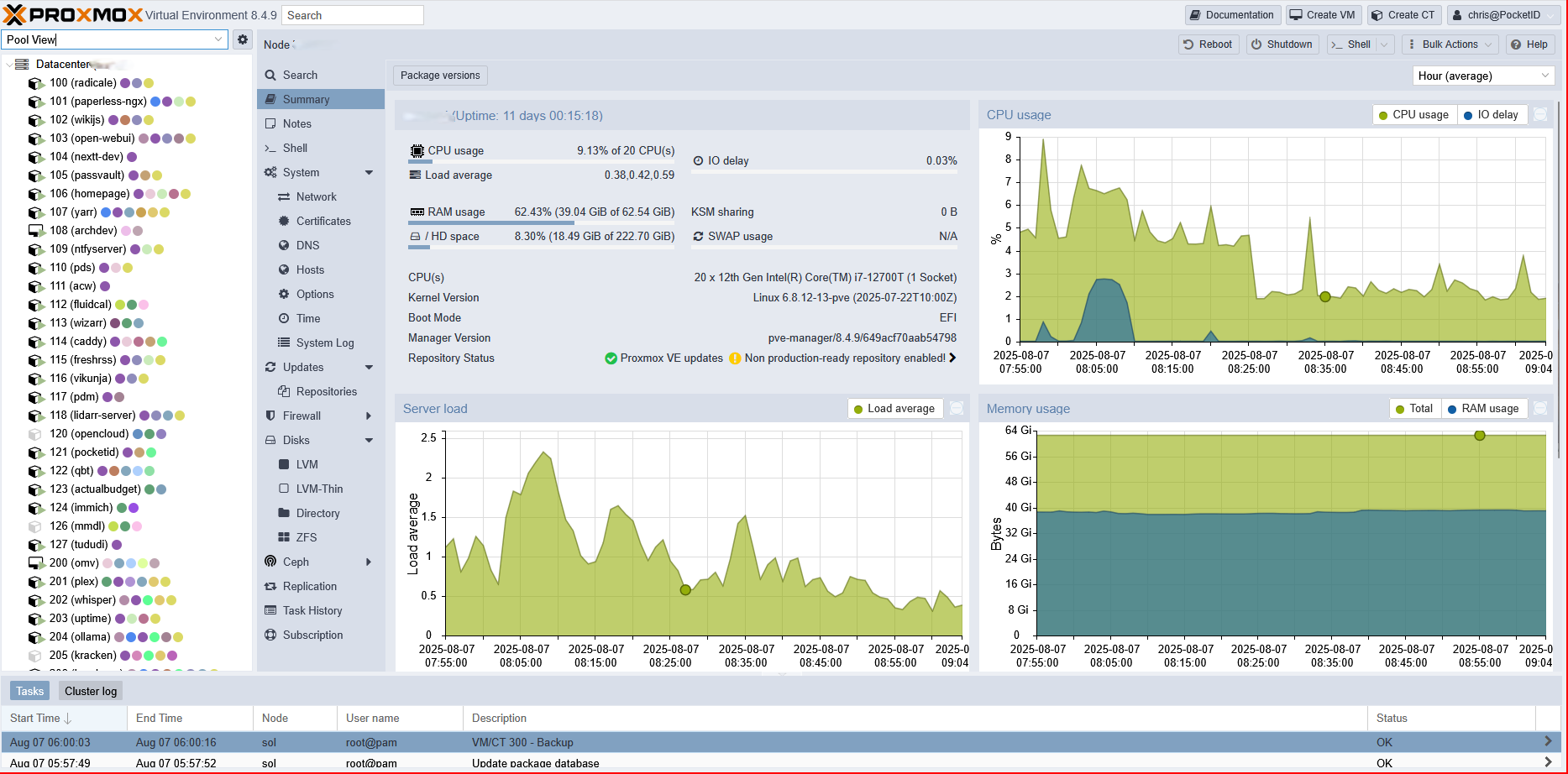
- Auto Mode If you choose 'Default (auto)' as the theme, the script will detect your system preferred theme (light or dark) via the media property
prefers-color-scheme, and will adjust accordingly, changing the theme when you change your system preference. A page refresh is not required.
Solar PVE – Solarized Light/Dark
- Light (Solarized Light) by default
- Dark (Solarized Dark) when Proxmox’s dark stylesheet is present
- No JS-framework dependencies—just vanilla CSS & a tiny inline script
- Easy to install and override via Proxmox’s
index.html.tpl
Installation
Copy the CSS
Place solarized.css into your Proxmox server’s static‐assets folder.
cd /usr/share/pve-manager/images/ && wget https://github.com/dabeastnet/SolarPVE/raw/refs/heads/main/solarized.css
Patch the Proxmox template
This part is the main logic behind changing themes.
And as it's a system file, it can be overwritten by an update of Proxmox.
- Backup the original template file as
index.html.tpl.orig
cp /usr/share/pve-manager/index.html.tpl /usr/share/pve-manager/index.html.tpl.origBackup, the index.html.tpl usually found at /usr/share/pve-manager/
- Edit Proxmox’s
index.html.tpl—usually at/usr/share/pve-manager/
nano /usr/share/pve-manager/index.html.tpl</head> (close to the bottom of the page). Copy-past the snippet from below: <script>
document.addEventListener('DOMContentLoaded', () => {
// Detect if Proxmox’s dark stylesheet is loaded
const darkLink = document.querySelector(
'link[href*="theme-proxmox-dark.css"]'
);
if (darkLink) {
document.body.classList.add('proxmox-theme-dark');
}
});
</script>
<link rel="stylesheet" href="/pve2/css/solarized.css">Clear browser cache
After restarting the PVE manager service, do a hard-refresh (Ctrl+F5) so your new CSS and script take effect. You should now see some color changes.
Restart Proxmox GUI
systemctl restart pveproxySwitch between Solar and Nord
If you want to switch between Solar and Nord the easiest way is to switch between index.html.tpl.nord and index.html.tpl.solar by copying them as index.html.tpl
cp /usr/share/pve-manager/index.html.tpl /usr/share/pve-manager/index.html.tpl.solarHow Solar PVE Works
- Dark mode When Proxmox itself loads its
theme-proxmox-dark.css, our small<script>adds.proxmox-theme-darkto<body>and you can write complementary CSS rules (e.g. underbody.proxmox-theme-dark) for Solarized Dark.
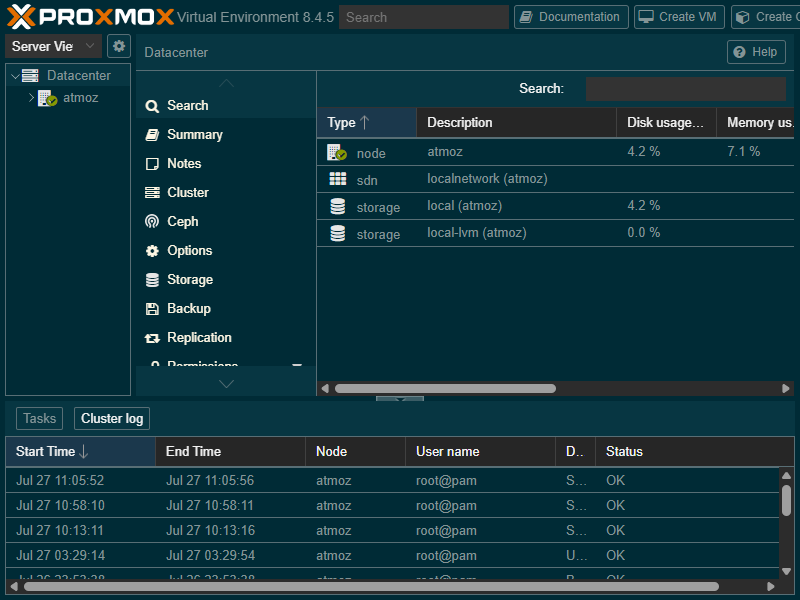
- Light mode All rules scoped under
body:not(.proxmox-theme-dark)apply Solarized Light defaults.
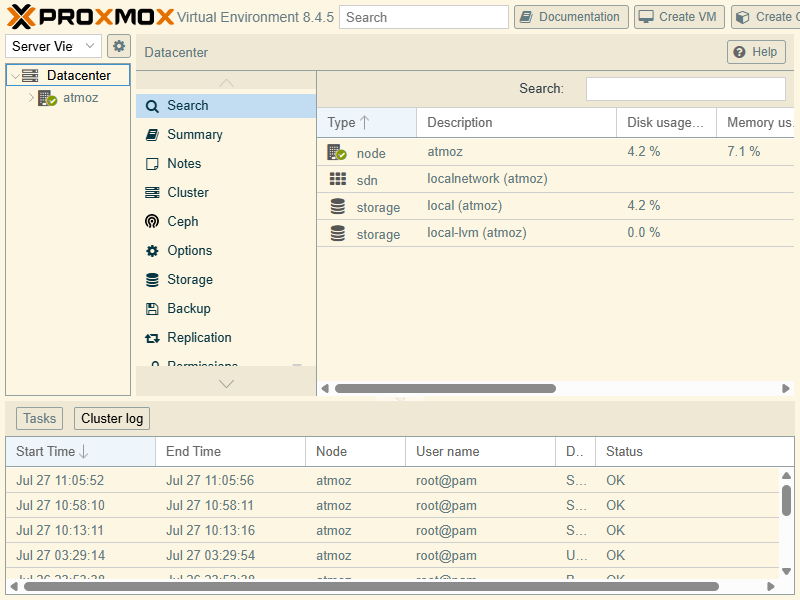
PVE Themes App
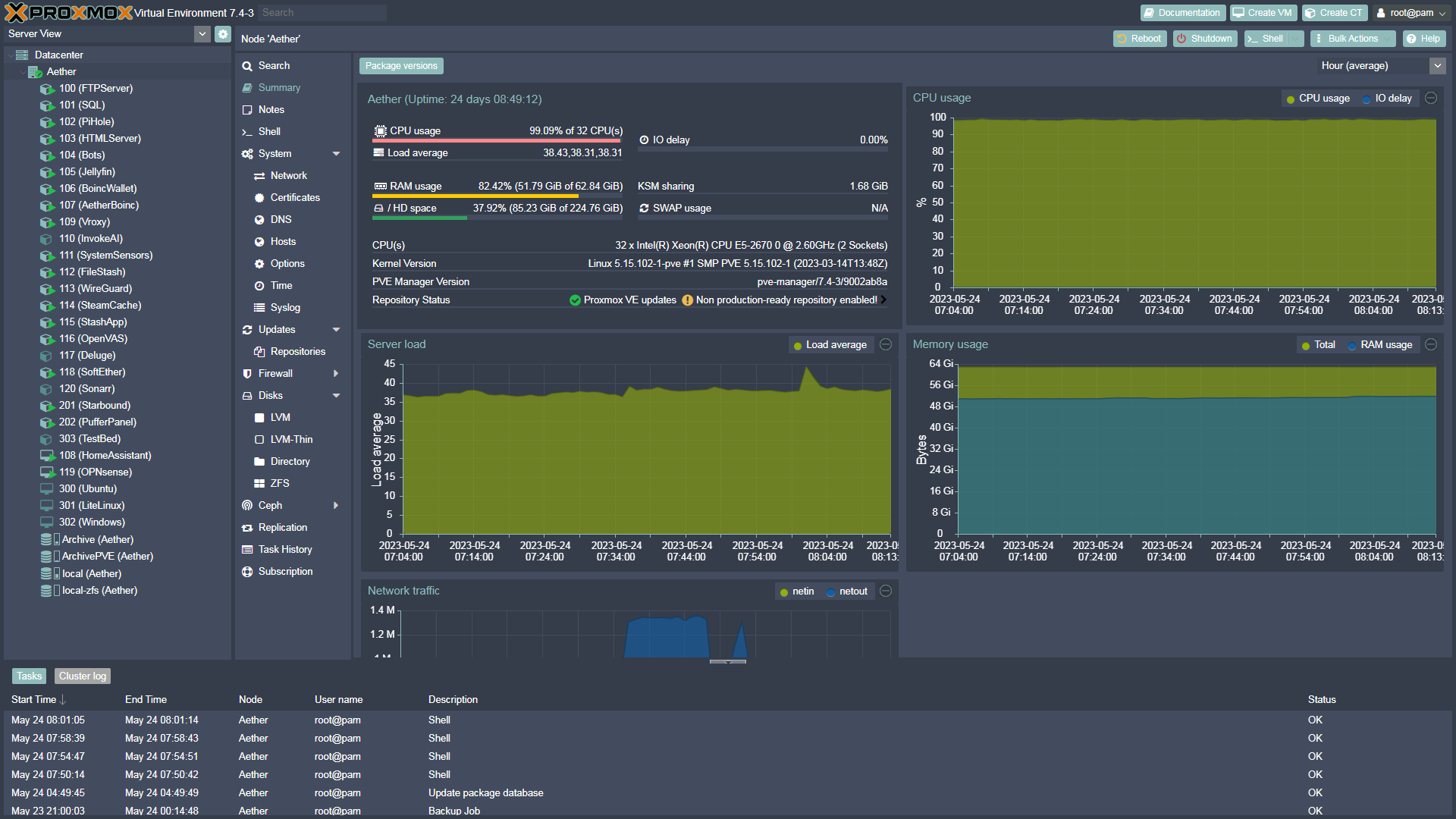
A successor to Discord Dark using python
The following themes are included now:
Avali
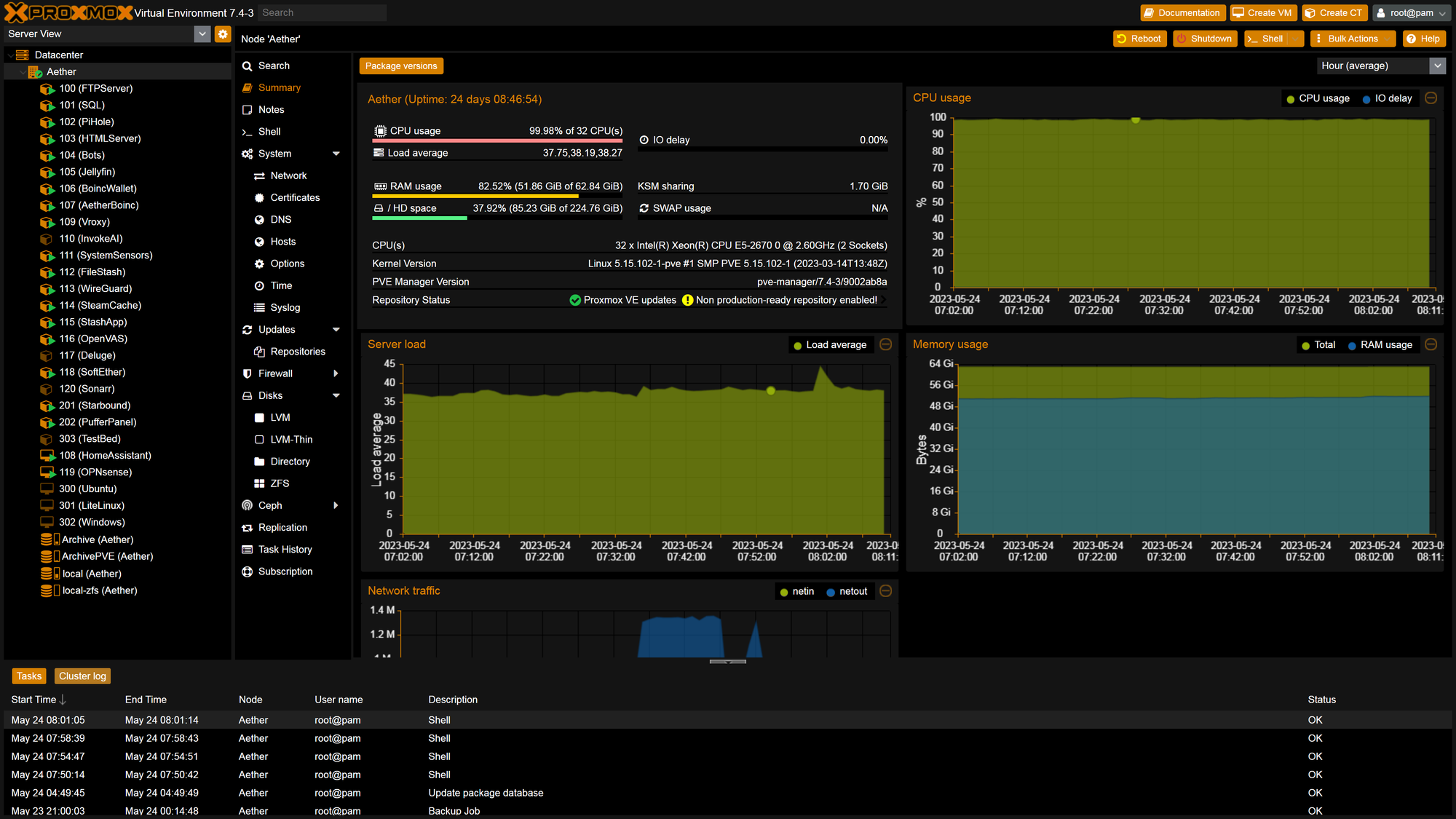
Catppuccin Frappe
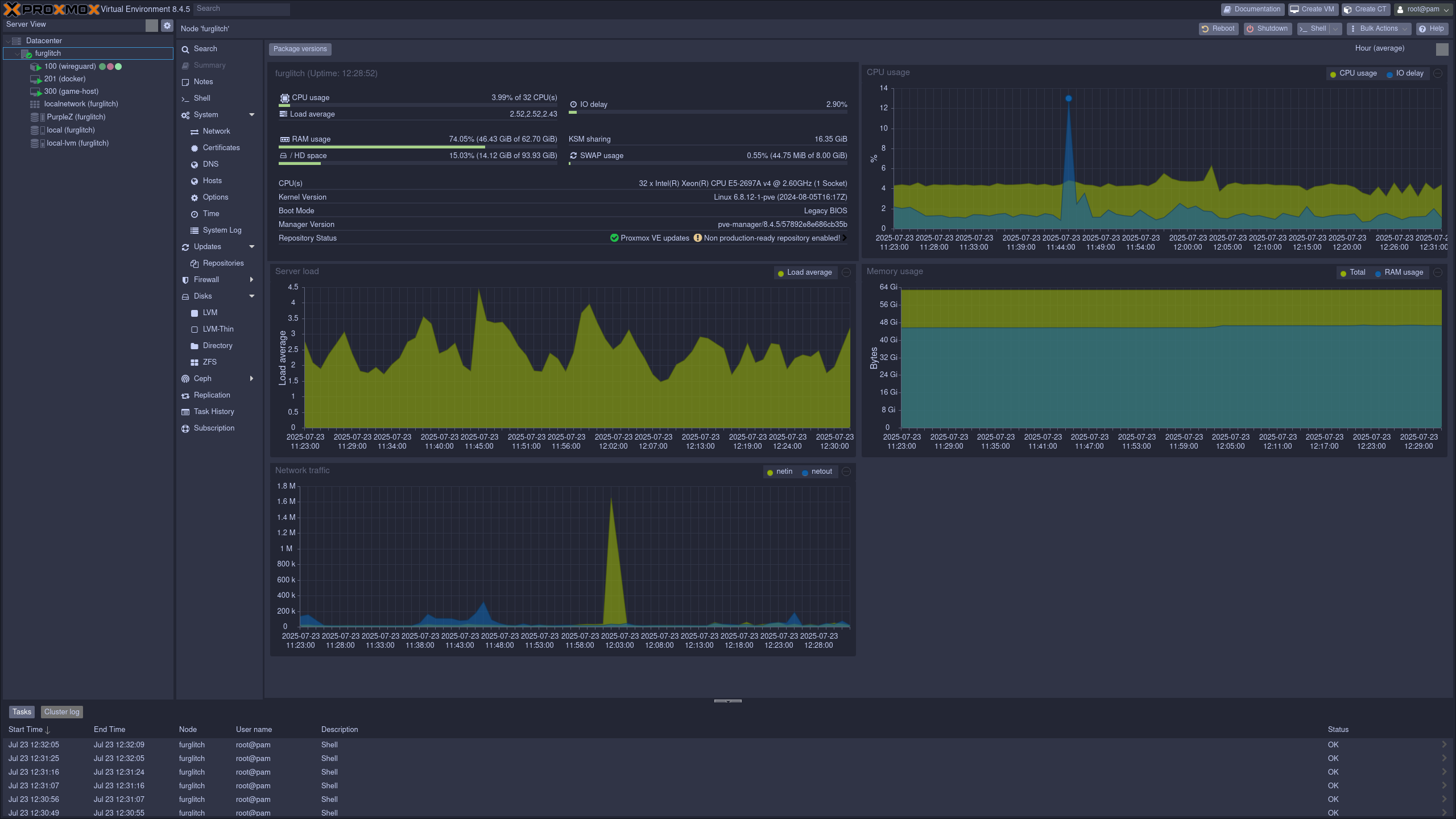
Catppuccin Latte
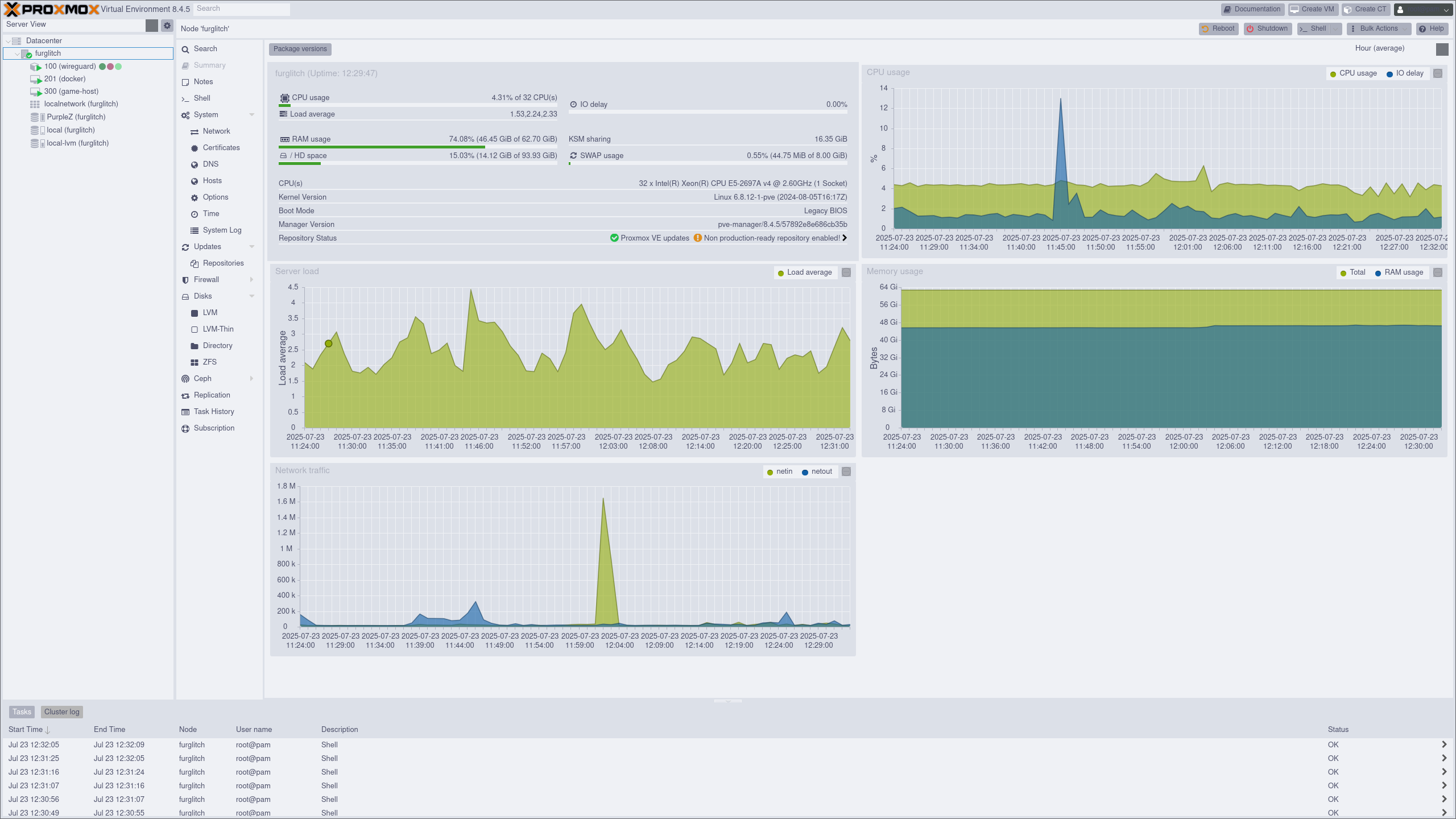
Catppuccin Macchiato
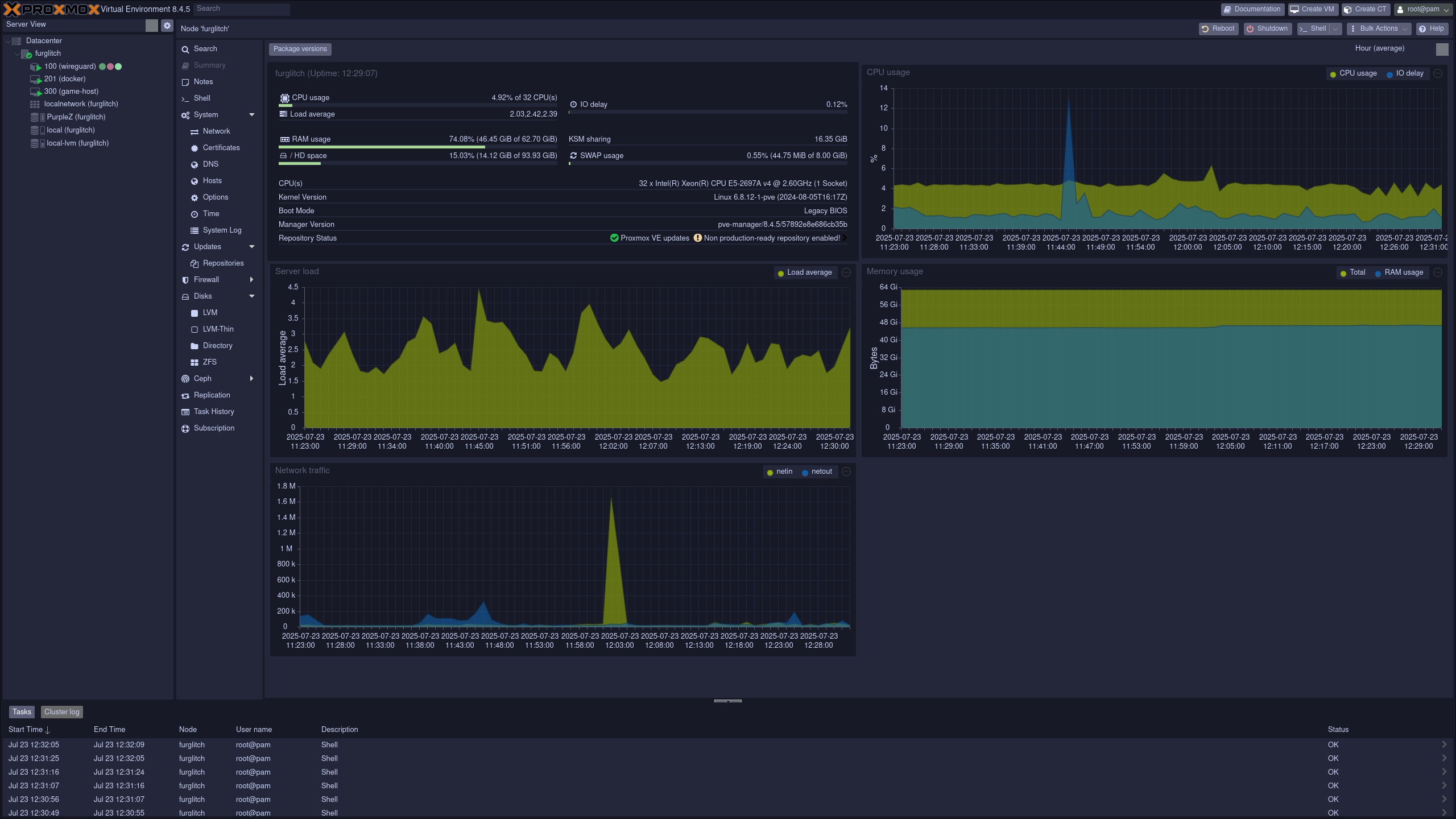
Catppuccin Mocha
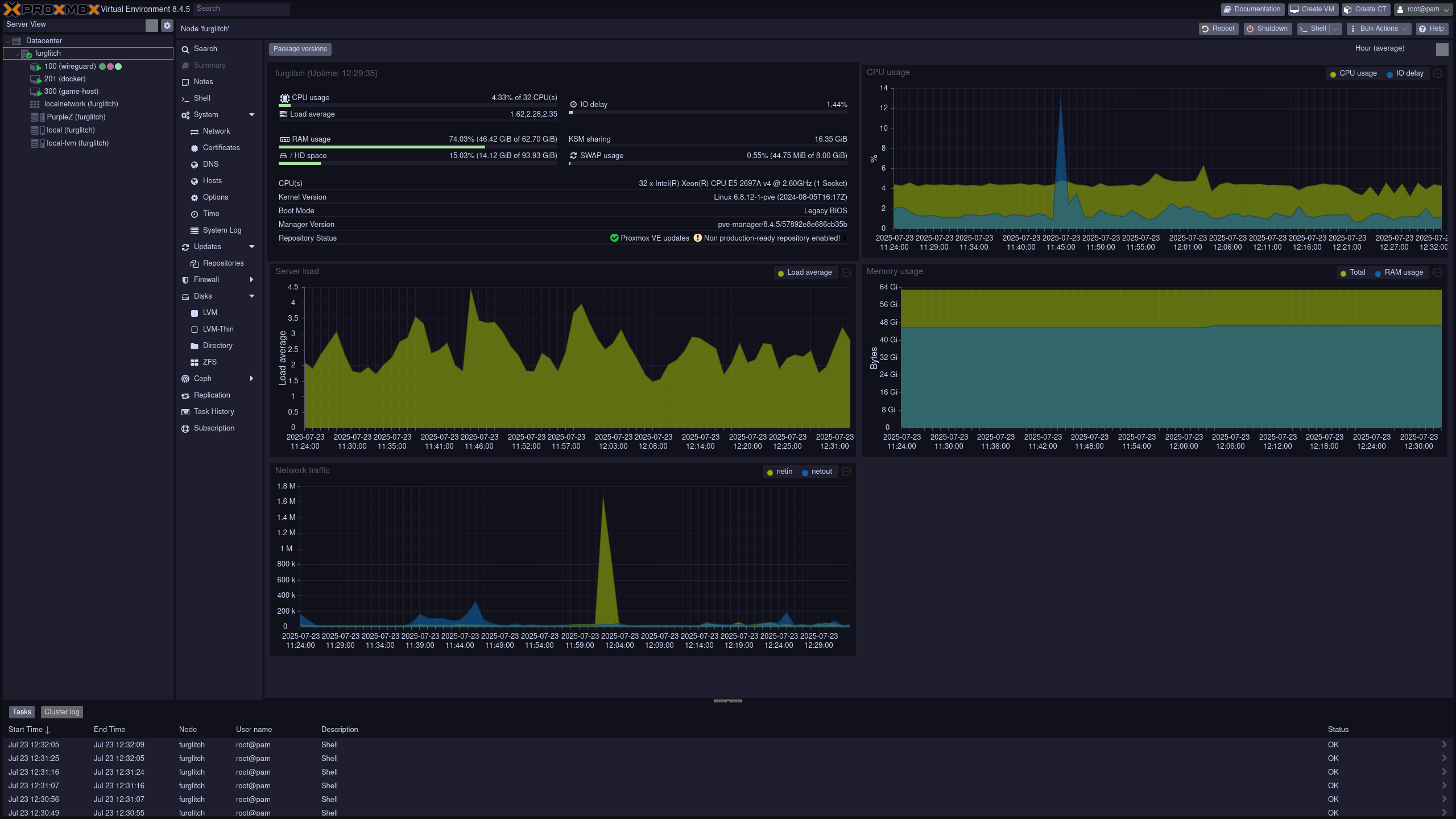
Discord Dark
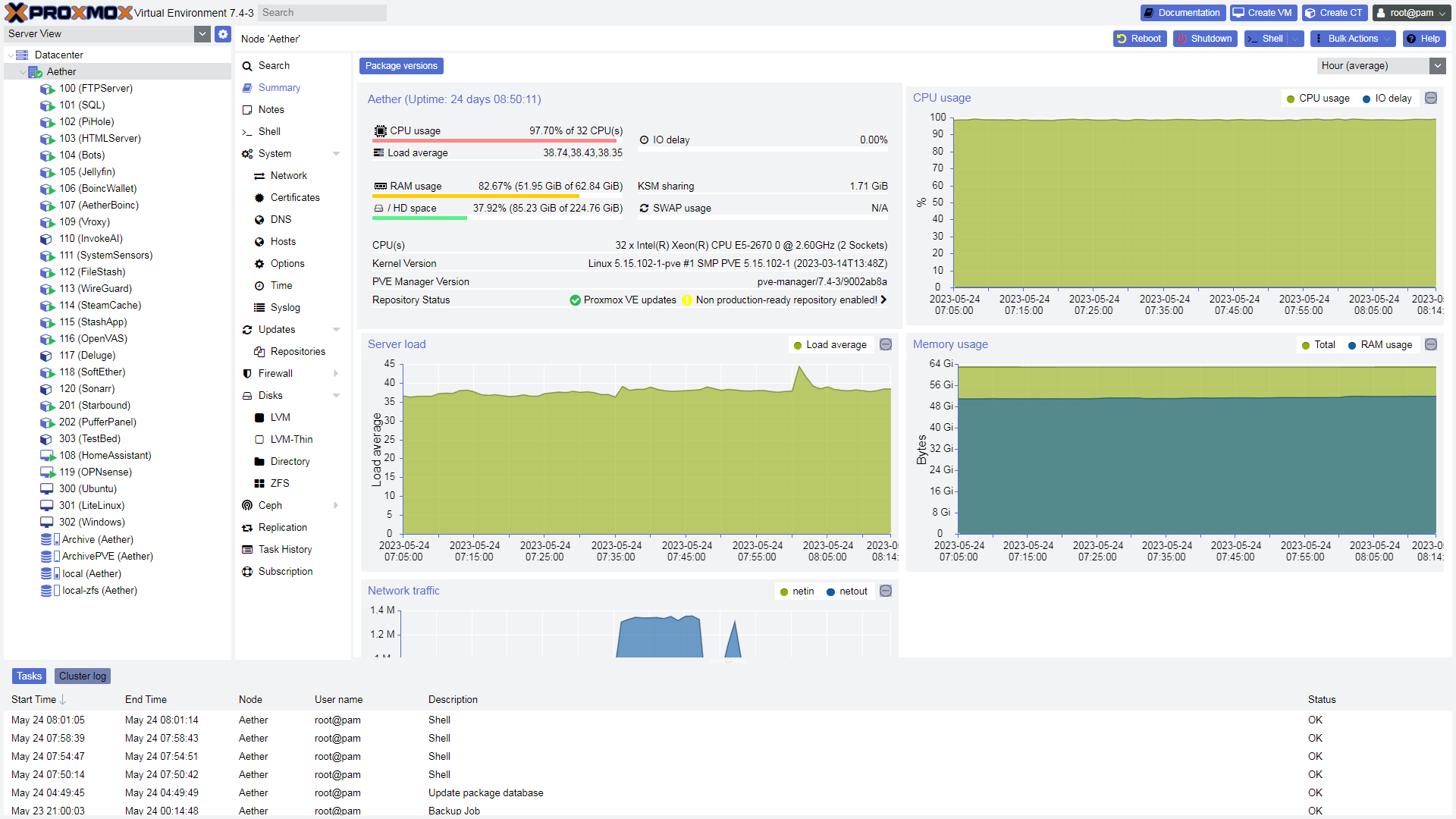
Discord Light
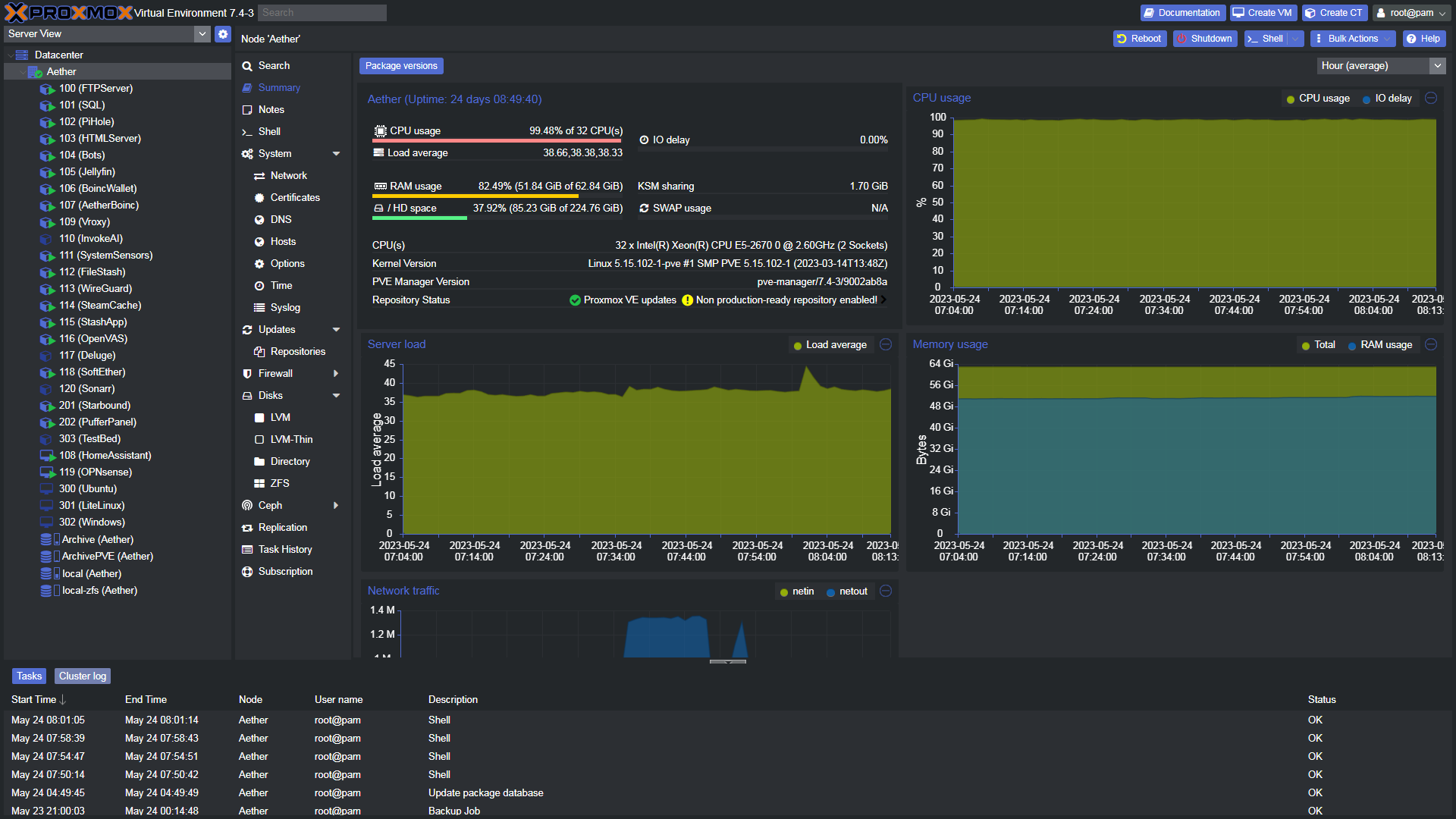
Nordigr
Installation
Read and understand what the scripts will do to your system.
Continue only if:
- If you accept the risk and
- understand what may happen,
- and you feel sure you can fix it.
Run the following commands on your PVE node:
git clone https://github.com/Happyrobot33/PVEThemes && cd PVEThemes && chmod +x install.sh && ./install.shif you have run the install.sh script before, you can instead just run the run.sh script
chmod +x run.sh && ./run.shif you are running into issues updating the script, run the following commands:
git pull && chmod +x install.sh && ./install.shNew Themes
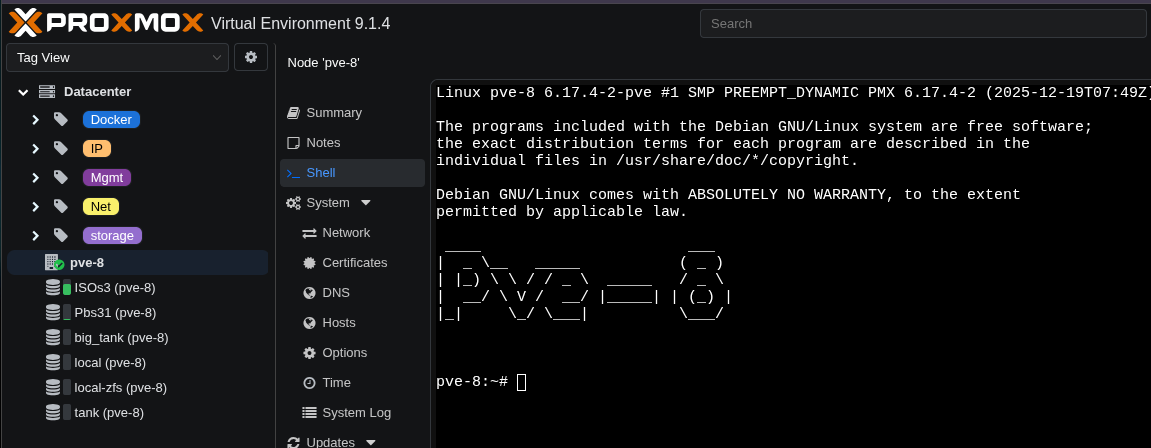
IT-BEAR has two new custom themes for Proxmox VE that integrate with the native Color Theme selector.
Features
- Themes appear in Proxmox's built-in Color Theme dropdown
- Automatically re-applies themes after Proxmox package updates
- Pure CSS - No JavaScript required, minimal footprint
References
Proxmox themes Nord [1], Solar [2] a new Discord Dark [3] It-Bear themes [^itb]
NordPVE GitHub, Example of an edited index.html.tpl file, view or download ↩︎
SolarPVE GitHub, Example of an edited index.html.tpl file view or download ↩︎
A new version of Discord Dark/light, Avali, Catppuccine frappe/ latte/macchiato/mocha and nordigr GitHub
[^itb}: IT-BEAR has two themes; Blue Slate and UniFi GitHub ↩︎


